Hi everybody!
Today we are going to explain how to pass form data object like a complex object between pages in Angular 2 or 4 or 5.
First of all, we have to declare our Data object like an injectable, on this way:
import { Injectable } from '@angular/core';
@Injectable()
export class Data {
public storage: any;
public constructor() { }
}
Then, we have to declare our Data object like a provider in our ngModule class file configuration, on this way:
@NgModule({
declarations: [AppComponent, ...appComponents],
bootstrap: [AppComponent],
imports: [
NativeScriptModule,
NativeScriptRouterModule,
NativeScriptRouterModule.forRoot(appRoutes)
],
providers: [Data]
})
class AppComponentModule {}
Then we can use this Data object in our pages.
First of all, we are going to define this in our first page, the origin one:
public constructor(private router: Router, private data: Data) {}
public navigationToPage2() {
this.data.storage = {
"firstname": "Nic",
"lastname": "Raboy",
"address": {
"city": "San Francisco",
"state": "California"
}
}
this.router.navigate(["page2"]);
}
And then, we will get the Data object in our second page, which receive the request of our form POST:
public constructor(private data: Data) {
console.log(JSON.stringify(this.data.storage));
}
Only we need now is to pass our form to the this.data.storage like a JSON file on this way:
this.data.storage = {
"requestData": JSON.stringify(requestData)
};
And the get the Data on the second page this way:
console.log(this.data.storage.requestData);
I hope you have found it useful and that you have solved your problems.
Try it and have fun!
Mostrando entradas con la etiqueta angular2. Mostrar todas las entradas
Mostrando entradas con la etiqueta angular2. Mostrar todas las entradas
jueves, 1 de febrero de 2018

viernes, 20 de octubre de 2017
What to do for Convert your App into a Progressive Web App
Hi,
I'm going to explain what to do for Converting your App into a Progressive Web App. Or what's the same, for using Service Workers.
Here you can see the demo of a Progressive Web App with Service Workers.
It's very easy.
You have to use Angular/Cli in your Angular App and do the next three steps:
- First, you have to change your Angular/Cli config file and add the next line:
{
"apps": [
{ "serviceWorker": true } ]
}
npm i @angular/service-worker --S
- And finally, you have to add the external links from your index.html for use the cache on them, modifying the generated file ngsw-manifest.json:
"external": {
And that's all!
Try it and have fun!
I'm going to explain what to do for Converting your App into a Progressive Web App. Or what's the same, for using Service Workers.
Here you can see the demo of a Progressive Web App with Service Workers.
It's very easy.
You have to use Angular/Cli in your Angular App and do the next three steps:
- First, you have to change your Angular/Cli config file and add the next line:
{
"apps": [
{ "serviceWorker": true } ]
}
- Second, you have to install the Service Workers dependency:
"external": {
"urls": [
{"url": "https://maxcdn.bootstrapcdn.com/bootstrap/3.3.7/css/bootstrap.min.css"},
{"url": "https://cdn.rawgit.com/konpa/devicon/4f6a4b08efdad6bb29f9cc801f5c07e263b39907/devicon.min.css"},
{"url": "https://fonts.googleapis.com/icon?family=Material+Icons"},
{"url": "https://cdnjs.cloudflare.com/ajax/libs/font-awesome/4.7.0/css/font-awesome.min.css"}
]
},
Try it and have fun!
miércoles, 28 de junio de 2017
How to configure Reactive Forms in your Angular Application?
Hey people!
Today I'm going to explain how to configure your Angular application to use Reactive Forms and how to implements your first form.
First of all, you have to install the forms module in your project:
npm install @angular/forms --save
Then, you have to modify your app.module.ts adding:
import { FormsModule, ReactiveFormsModule } from '@angular/forms';
@NgModule({
public myForm: FormGroup;
public submitted: boolean;
Today I'm going to explain how to configure your Angular application to use Reactive Forms and how to implements your first form.
First of all, you have to install the forms module in your project:
npm install @angular/forms --save
Then, you have to modify your app.module.ts adding:
imports: [ BrowserModule, ReactiveFormsModule ],
declarations: [ AppComponent ],
bootstrap: [ AppComponent ]
})
On this point, your project is prepared for using Reactive Forms.
The you have to modify the form component you want to use:
<div class="container">
  <h1>Add user</h1>
  <form [formGroup]="myForm" novalidate (ngSubmit)="save(myForm.value, myForm.valid)">
    <div class="form-group">
      <label for="">Name</label>
      <input type="text" class="form-control" formControlName="name">
      <small [hidden]="myForm.controls.name.valid || (myForm.controls.name.pristine && !submitted)" class="text-danger">
            Name is required (minimum 5 characters).
          </small>
      <!--<pre class="margin-20">{{ myForm.controls.name.errors | json }}</pre>-->
    </div>
    <div class="form-group" formGroupName="address">
      <label for="">Address</label>
      <input type="text" class="form-control" formControlName="street">
      <small [hidden]="myForm.controls.address.controls.street.valid || (myForm.controls.address.controls.street.pristine && !submitted)" class="text-danger">
            Street required
          </small>
    </div>
    <div class="form-group" formGroupName="address">
      <label for="">Postcode</label>
      <input type="text" class="form-control" formControlName="postcode">
    </div>
    <button type="submit" class="btn btn-default">Submit</button>
    <div class="margin-20">
      <div>myForm details:-</div>
      <pre>Is myForm valid?: <br>{{myForm.valid | json}}</pre>
      <pre>Is myForm submitted?: <br>{{submitted | json}}</pre>
      <pre>myForm value: <br>{{myForm.value | json}}</pre>
    </div>
    <div class="margin-20">
      Form changes:
    </div>
    <div *ngFor="let event of events" class="margin-20">
      <pre> {{ event | json }} </pre>
    </div>
  </form>
</div>
With the typescript file of the component with the changes:public myForm: FormGroup;
public submitted: boolean;
...
constructor(private _fb: FormBuilder) { }
...
ngOnInit() {
// the short way
this.myForm = this._fb.group({
name: ['', [<any>Validators.required, <any>Validators.minLength(5)]],
address: this._fb.group({
street: ['', <any>Validators.required],
postcode: ['8000']
})
});
}
...
save(model: User, isValid: boolean) {
this.submitted = true;
console.log(model, isValid);
}
You can develop your forms in many way.
Use which is more easy for you.
Try it and have fun!
...
save(model: User, isValid: boolean) {
this.submitted = true;
console.log(model, isValid);
}
You can develop your forms in many way.
Use which is more easy for you.
Try it and have fun!
martes, 18 de abril de 2017
Keys for configure Bootstrap 3 in Angular 4 Project!
Hi,
Today, I'm going to explain the steps for configure Bootstrap in an Angular application.
First of all, we have to add Bootstrap in our application with:
> npm install --save ngx-bootstrap@latest
Then, we have to open the index.html file and add:
You have to know that any div with class col-**-** need a parent div with class row.
Today, I'm going to explain the steps for configure Bootstrap in an Angular application.
First of all, we have to add Bootstrap in our application with:
> npm install --save ngx-bootstrap@latest
Then, we have to open the index.html file and add:
<link
rel="stylesheet"
href="https://maxcdn.bootstrapcdn.com/bootstrap/3.3.7/css/bootstrap.min.css" />
Then, we have all we need for use Bootstrap 3 in Angular 4.
Now, we have to configure all the html files following the structure:
<div class="row">
<div class="col-xs-12 col-sm-6 col-lg-3">
...
</div>
... (any repeations you need)
</div>
You have to know that any div with class col-**-** need a parent div with class row.
Also, you have to know that col-xs is for mobiles dispositive, col-sm for tablets dispositives and col-lg for computer dispositive.
Here you have the documentation of the Bootstrap 3 style; All you need is here:
When you domain all this css styles, you can improve new approach for your develops.
Try it and have fun!
lunes, 10 de abril de 2017
How to migrate an Angular 2 Project to Angular 4?
Hi people,
Angular is growing ;) and now we have to migrate it to be updated!
The steps to upgrade to angular 4 are as follows:
First of all verify the Node Version:
Then, we are going to actualice angular/cli:
Angular is growing ;) and now we have to migrate it to be updated!
The steps to upgrade to angular 4 are as follows:
First of all verify the Node Version:
> node -vThen, we are going to actualice angular/cli:
First, we have to remove the actuals possibles versions:
> npm uninstall -g @angular/cli> npm uninstall -g @angular-cli
Then, we are going to install it again:
> npm install -g @angular/cli> ng -v _ _ ____ _ ___
/ \ _ __ __ _ _ _| | __ _ _ __ / ___| | |_ _|
/ △ \ | '_ \ / _` | | | | |/ _` | '__| | | | | | |
/ ___ \| | | | (_| | |_| | | (_| | | | |___| |___ | |
/_/ \_\_| |_|\__, |\__,_|_|\__,_|_| \____|_____|___|
|___/
@angular/cli: 1.0.0
node: 6.10.2
os: win32 x64
In Windows PC:
npm install @angular/common@next @angular/compiler@next @angular/compiler-cli@next @angular/core@next @angular/forms@next @angular/http@next @angular/platform-browser@next @angular/platform-browser-dynamic@next @angular/platform-server@next @angular/router@next @angular/animations@next --savenpm install @angular/{common,compiler,compiler-cli,core,forms,http,platform-browser,platform-browser-dynamic,platform-server,router,animations}@next --save> npm install typescript@2.2.1 --save> ng serve
miércoles, 8 de febrero de 2017
How to obtain the language in the browser and externalice with it in Angular 2?
Hi everybody!
Here we comes with another question.
Today the theme is Angular 2, Javascript and the navigator class.
With this code we will obtain the language from the browser:
loadLanguage() {
let idioma = navigator.language;
if(idioma === 'ca' || idioma == 'es' || idioma == 'gl' || idioma == 'va' || idioma == 'eu' || idioma == 'en' || idioma == 'fr') {
this.idioma = idioma;
} else {
this.idioma = "en";
}
}
Navigator is a Javascript class that returns the language and other interesting things.
Show the nagivator object with console.log(navigator); to see what are you interested in.
Another question related with this theme is to externalice the content of your web in Angular2.
For do that I pass you my example code:
Here we comes with another question.
Today the theme is Angular 2, Javascript and the navigator class.
With this code we will obtain the language from the browser:
loadLanguage() {
let idioma = navigator.language;
if(idioma === 'ca' || idioma == 'es' || idioma == 'gl' || idioma == 'va' || idioma == 'eu' || idioma == 'en' || idioma == 'fr') {
this.idioma = idioma;
} else {
this.idioma = "en";
}
}
Show the nagivator object with console.log(navigator); to see what are you interested in.
Another question related with this theme is to externalice the content of your web in Angular2.
For do that I pass you my example code:
This method loads the dictionary with all the traductions and the possible languages:
| loadDictionary() { this.dictionary = { titol: {ca: 'El Temps a Espanya!', es: '¡El Tiempo en España!', en: 'The Weather in Spain!', fr: 'String1InSpanish', gl: 'O tempo en España!', va: 'El Temps a Espanya!', eu: 'Eguraldia Espainian!'}, descripcio: { ca: 'Troba les prediccions meteorològiques de tots els municipis espanyols durant els propers quatre dies.', es: 'Encuentra las prediciones meteorológicas de todos los municipios españoles durante los próximos cuatro días.', en: 'Find weather forecasts for all Spanish municipalities over the next four days.', fr: 'Trouvez les prévisions météo pour toutes les municipalités espagnoles au cours des quatre prochains jours.', gl: 'Atopar as previsións do tempo para todos os municipios españois durante os próximos catro días.', va: 'Troba les prediccions meteorològiques de tots els municipis espanyols durant els propers quatre dies.', eu: 'Aurki eguraldi Espainiako udalerri guztietako iragarpenak hurrengo lau egunetan zehar.'} }; } This method obtaions the translation of a key string in a language: getTranslation(inStringId: string, inLanguageId: string) { let labelTexts = this.dictionary[inStringId]; let translation; if (labelTexts) { translation = labelTexts[inLanguageId]; } if (translation == null) { translation = inStringId; console.error(inStringId + ' has no defined text for language ' + inLanguageId); } return translation; } And this method loads the texts you need in your web: loadTexts() { this.titol = this.getTranslation("titol", this.idioma); this.descripcio = this.getTranslation("descripcio", this.idioma); } This is my way! There are another possibilities! For any questio, don't doubt ask me! Try it and have fun! |
lunes, 30 de enero de 2017
Use cases of this.http.get in Angular 2
Hi everybody!!!
Here we comes with news explanations! Today the theme is how to use the sentence this.http.get! When use on one way or another? And why?
The question you have to do is... do you want a Sincron or Asincron call?
A Sincron call is when you want that the process occurs in the main thread. On this way, the sequence of the next process don't occurs until the call finish.
For do a Sincron call, you have to do the call like this:
This sentence will return a json data file. If you want to return a content file (binary or others types) you have to change data.json() call by data.text().
An Asincron call is when you want to create a new thread from the main thread. On this way, the senquence of the next process will continue and our thread will continue on parallel.
For do an Asincron call, you have to do the call like this:
Here we comes with news explanations! Today the theme is how to use the sentence this.http.get! When use on one way or another? And why?
The question you have to do is... do you want a Sincron or Asincron call?
A Sincron call is when you want that the process occurs in the main thread. On this way, the sequence of the next process don't occurs until the call finish.
For do a Sincron call, you have to do the call like this:
this.http.get(url).map( data => data.json() )
This sentence will return a json data file. If you want to return a content file (binary or others types) you have to change data.json() call by data.text().
An Asincron call is when you want to create a new thread from the main thread. On this way, the senquence of the next process will continue and our thread will continue on parallel.
For do an Asincron call, you have to do the call like this:
this.http.get(url)
.subscribe(
data => this.data = data.json(),
err => this.handleError,
() => {console.log('complete call') /*do something when finish*/}
);
This sentence will process an Asincron call and you can do want you want with the data json file obtained on the complete pass. This call is used in the onInit of the component normally and usually loads a data json file necessary for something on the application (a data project information, a data language properties or what you need or want).
I hope you have found interesting this article.
You can ask me any question or doubt!!! And you are free for share them with your friends!!!
Try it and have fun!
lunes, 7 de noviembre de 2016
Bind json data to tree component with Angular 2
Here we come again!
Today with news of a useful component that can shows you the way to continue your own components in Angular2.
Here you can see the demo (click the Project link button).
We have two components: the tree component and the node component (the tree component is an array of node components).
Take a look to the tree.component (html and css files):


And here is the ts file:

You can see that we don't need a css file and the html iterate an array of node and calls the app-node-tree with the root properties.
Now take a loot to node.component (html and css files):

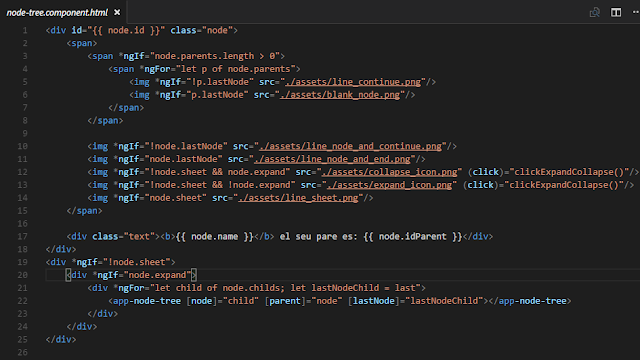
Here we can see the styles of my node, setting the div and img style's and the html file. There is a div with the images that we have to load on the node and later we iterate the array of children of the node.
We use a recursive component, because we call the aap-node-tree in an app-node-tree.
Take a look to ts file:

In this Typescript file we load the node with the loadNode method. The ancestors and the property lastNode indicates whether the node is the last sibling of the same parent.
There is a method that change the state between expand and collapse of the image in the node.
At last, we will see the tree.json file with the structure of our tree, that we can change with the structure we want:

On my example, we have to repeat this structure three times and we will get our tree.
I hope you find this article interesting!
Here you can see the example.
This example is done with Angular-cli.
Here you can find the repository of the component done by @davidnezan.
Try it and have fun!
Today with news of a useful component that can shows you the way to continue your own components in Angular2.
Here you can see the demo (click the Project link button).
We have two components: the tree component and the node component (the tree component is an array of node components).
Take a look to the tree.component (html and css files):


And here is the ts file:

You can see that we don't need a css file and the html iterate an array of node and calls the app-node-tree with the root properties.
Now take a loot to node.component (html and css files):


Here we can see the styles of my node, setting the div and img style's and the html file. There is a div with the images that we have to load on the node and later we iterate the array of children of the node.
We use a recursive component, because we call the aap-node-tree in an app-node-tree.
Take a look to ts file:

In this Typescript file we load the node with the loadNode method. The ancestors and the property lastNode indicates whether the node is the last sibling of the same parent.
There is a method that change the state between expand and collapse of the image in the node.
At last, we will see the tree.json file with the structure of our tree, that we can change with the structure we want:

On my example, we have to repeat this structure three times and we will get our tree.
I hope you find this article interesting!
Here you can see the example.
This example is done with Angular-cli.
Here you can find the repository of the component done by @davidnezan.
Try it and have fun!
lunes, 31 de octubre de 2016
Animate Components with Angular 2
Here I come again!
In this time, I am going to explain how to animate components with Angular2. I do the next animations: bounce, fade, flip, roll, rotate, zoom and others.
Here you can see the demo (click the Project link button).
Here you can see the demo (click the Project link button).
First of all, we will take a look to the structure of the components I developed.
We need, like in all Angular2 projects, an app.module.ts:

We have the root component. The real components we will use extends them and gets his properties:

Now we are going to explain an example animation. All animations go by the same way. If you understand one, you are going to understand all.
I choose the roll-animation.component.ts, because is the most easy to explain and to learn too.
We have three parts of a component: the css file, the html file and the typescript file).
The css file and the html file:
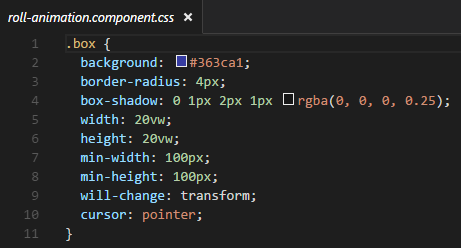

The typescript file:

In this file, we could see that the component RollAnimationComponent extends the RootAnimationComponent.
Any animate have a time (in miliseconds) and a transformation style. In this example, we could see a translate3d and a rotate3d and how change the opacity and the offset.
And finally, the easiest think. With only one line we call the component in my html file:

My project was inspired in this other project (http://daneden.github.io/animate.css/.) has done in AngularJS.
This is the repositori of my project where I develop my animations.
Here you can find the documentation in angular.io to do your animations.
Try it and have fun!
miércoles, 26 de octubre de 2016
Bind json data to html table with Angular 2
Here I come again!

The Service returns an Observable of any type, that makes asyncron the call from the Component. So you can extend the code by using any structure of JSON file and making some modifications.
Now I will show you the Component, that we will create with the instruction (ng generate component [componentname.component]):

The Component will call our Service and save the information of the JSON file.
Now comes the HTML file and the CSS file:


Here you can see the use of ngFor, the declaration of a variable with "let" and the attribute "async" that makes asyncron our request.
The JSON file will look like this. You can put the attributes you want, but it's important that the HTML file have the sames name of the JSON file's attributes.

And finally, I can show you the structure of the project that has been done with Angular-Cli, as I said in the beginning.

This is my Git Repository where I push this project and you can get it: https://github.com/davidmartinezros/bind-json-array-to-html-table.
Thanks for reading me, I hope it will help you!
Try it and have fun!
In this example I will show how to bind a JSON file with an html table with Angular2 (the new version of AngularJS, but with Typescript).
Here you can see the demo (click the Project link button).
Here you can see the demo (click the Project link button).
We need a Service Object and a Component Object and I'm going to use Angular-cli to create them.
First of all, take a look to Service class:
(we will create them with: ng generate service [my.servicename.service])
And I make the next modifications:

The Service returns an Observable of any type, that makes asyncron the call from the Component. So you can extend the code by using any structure of JSON file and making some modifications.
Now I will show you the Component, that we will create with the instruction (ng generate component [componentname.component]):

The Component will call our Service and save the information of the JSON file.
Now comes the HTML file and the CSS file:


Here you can see the use of ngFor, the declaration of a variable with "let" and the attribute "async" that makes asyncron our request.
The JSON file will look like this. You can put the attributes you want, but it's important that the HTML file have the sames name of the JSON file's attributes.

And finally, I can show you the structure of the project that has been done with Angular-Cli, as I said in the beginning.

This is my Git Repository where I push this project and you can get it: https://github.com/davidmartinezros/bind-json-array-to-html-table.
Thanks for reading me, I hope it will help you!
Try it and have fun!
Suscribirse a:
Entradas (Atom)